
The One SSH Alias That Makes Remote OpenClaw OAuth Actually Work
I spent an embarrassing amount of time staring at a browser callback error before I figured this out.
I run OpenClaw on a headless VPS. Codex login was fine — codex login --device-auth gives you a URL and a one-time code, you type it into your local browser, done. But OpenClaw’s OpenAI Codex OAuth flow is different. It wants to complete a browser redirect back to 127.0.0.1:1455 on the machine running OpenClaw. My browser is on my Mac. OpenClaw is on the VPS. That callback has nowhere to go.
The fix turned out to be one SSH alias. Here’s the whole story.
Two Auth Flows, Two Different Problems
This is the distinction that tripped me up. Not all remote auth flows work the same way:
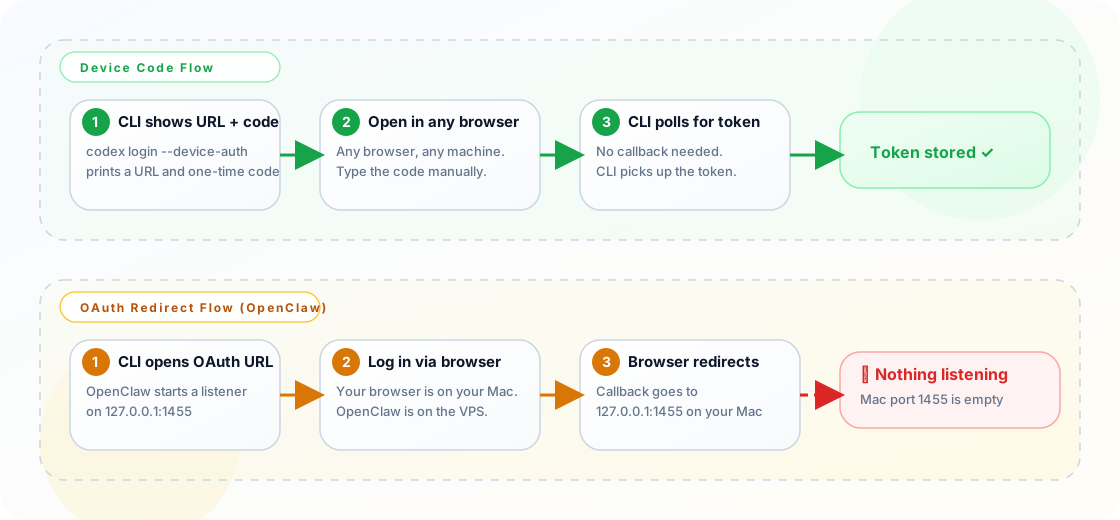
View Mermaid source
flowchart TB
    subgraph device["Device Code Flow (codex login)"]
        direction LR
        D1["CLI shows URL + code"] --> D2["You open URL in<br>any browser, anywhere"]
        D2 --> D3["Type the code"]
        D3 --> D4["CLI polls and picks<br>up the token ✓"]
    end
    subgraph oauth["OAuth Redirect Flow (OpenClaw)"]
        direction LR
        O1["CLI opens OAuth URL"] --> O2["You log in via browser"]
        O2 --> O3["Browser redirects to<br>127.0.0.1:1455/callback"]
        O3 --> O4["❌ Nothing is listening<br>on your Mac's port 1455"]
    end
    style device fill:#e8f5e9,stroke:#43a047
    style oauth fill:#fff3e0,stroke:#ef6c00
On a headless VPS, that’s a problem.
What My Normal SSH Alias Looks Like
My day-to-day alias drops me straight into a persistent tmux session on the VPS:
alias claw='echo -ne "\033]0;Claw (OpenClaw Droplet)\007" && ssh -t -i ~/.ssh/vps_ed25519 user@203.0.113.10 "tmux -CC attach -t work || tmux -CC new -s work"'It’s great for regular work:
- drops me right in
- reconnects to my persistent tmux session
- keeps long-running agents alive if my connection drops
But it does not forward the OAuth callback port. So when OpenClaw started the browser-based OAuth flow, my local browser had nowhere to send the callback. I could start the flow, but I couldn’t complete it.
My First Instinct Was Wrong
My first move was to bolt -L 1455:127.0.0.1:1455 onto the regular claw alias. It worked! But it created a mess:
- my normal shell session now carried a hidden auth tunnel I’d forget about
- if that session was attached to a persistent tmux session, the tunnel just lived there indefinitely
- I started getting tmux sessions named
work,work2,work-authand lost track of which was which
That’s the wrong mental model. Auth should be temporary. Start it, finish the flow, verify it worked, close it.
The Clean Fix: A Separate Auth Alias
alias claw-auth='echo -ne "\033]0;Claw (OpenClaw Auth)\007" && ssh -L 1455:127.0.0.1:1455 -i ~/.ssh/vps_ed25519 user@203.0.113.10'One extra alias. That’s it.
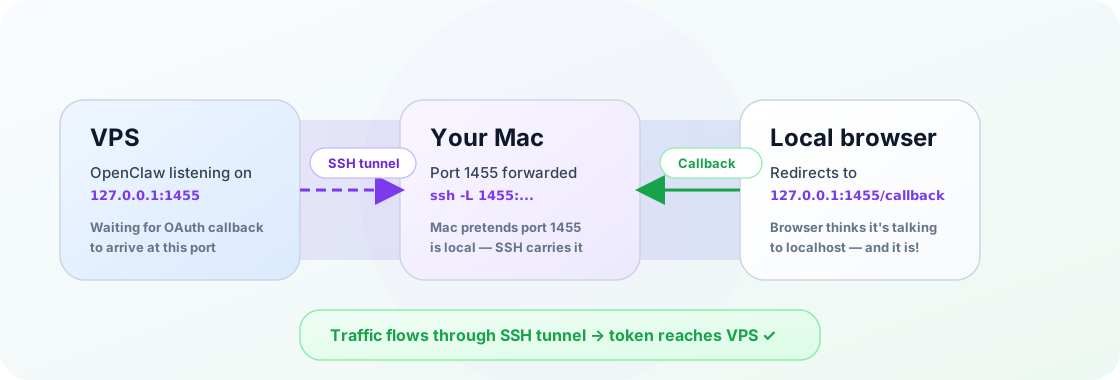
127.0.0.1 as your Mac. With ssh -L 1455:127.0.0.1:1455, your Mac pretends port 1455 is local, but SSH quietly carries that traffic to the remote OpenClaw process on the VPS.
View Mermaid source
flowchart LR
    A["OpenClaw on VPS<br>listening on<br>127.0.0.1:1455"] -->|"SSH tunnel<br>-L 1455:127.0.0.1:1455"| B["Your Mac<br>port 1455 forwarded"]
    B --> C["Browser opens<br>OAuth URL"]
    C --> D["Browser redirects to<br>http://127.0.0.1:1455/callback"]
    D -->|"traffic flows through<br>SSH tunnel"| A
    style A fill:#e3f2fd,stroke:#1565c0
    style B fill:#f3e5f5,stroke:#7b1fa2
    style D fill:#e8f5e9,stroke:#2e7d32
That’s the whole trick. No special OpenClaw magic. Just SSH local port forwarding.
The Two-Alias Setup
Here’s what I keep in my shell config:
# Day-to-day work — persistent tmux, no port forwarding
alias claw='echo -ne "\033]0;Claw (OpenClaw Droplet)\007" && ssh -t -i ~/.ssh/vps_ed25519 user@203.0.113.10 "tmux -CC attach -t work || tmux -CC new -s work"'

# Temporary OAuth tunnel — port forwarding, no tmux
alias claw-auth='echo -ne "\033]0;Claw (OpenClaw Auth)\007" && ssh -L 1455:127.0.0.1:1455 -i ~/.ssh/vps_ed25519 user@203.0.113.10'
If ~/.ssh/vps_ed25519 isn’t your key path, the quickest ways to find yours:
- already have a working alias? run
alias clawand check the-iargument - use
~/.ssh/config? runssh -G claw | rg '^identityfile ' - just want to see what keys exist? run
ls ~/.ssh
The key difference between the two aliases:
claw | claw-auth | |
|---|---|---|
| Purpose | Day-to-day work | OAuth login flow |
| tmux | Yes, persistent session | No |
| Port forwarding | No | Yes, port 1455 |
| Lifetime | Long-lived | Temporary — close after auth |
| When to use | Any time you need a shell | Only when OpenClaw needs browser OAuth |
The important part: claw-auth intentionally does not use tmux. For a one-off login flow, you don’t want persistent state. You want a clean shell, a live tunnel, a successful auth, and then an exit.
The Login Flow Step by Step
When OpenClaw needs browser-based OAuth on the VPS:
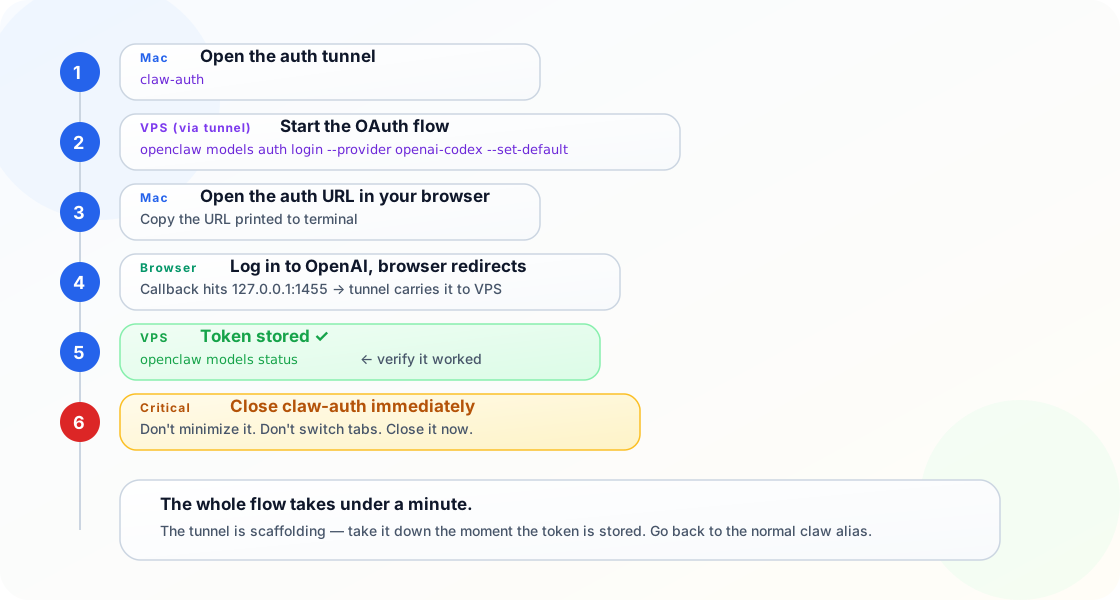
View Mermaid source
sequenceDiagram
    participant Mac as Your Mac
    participant SSH as SSH Tunnel
    participant VPS as VPS (OpenClaw)
    participant Browser as Local Browser
    Mac->>SSH: claw-auth (opens tunnel on port 1455)
    Mac->>VPS: openclaw models auth login<br>--provider openai-codex --set-default
    VPS-->>Mac: Auth URL printed to terminal
    Mac->>Browser: Open the URL
    Browser->>Browser: Log in to OpenAI
    Browser->>SSH: Redirect to 127.0.0.1:1455/callback
    SSH->>VPS: Forward callback through tunnel
    VPS-->>VPS: Token stored ✓
    Mac->>VPS: openclaw models status (verify)
    Mac->>SSH: Exit claw-auth session
In practice:
- On your Mac, run
claw-auth - In that SSH session, start the auth flow:
openclaw models auth login --provider openai-codex --set-defaultOr if you’re in the full setup wizard: openclaw onboard
- Open the auth URL in your local browser
- Let the browser complete the redirect to
http://127.0.0.1:1455/... - Verify login on the VPS:
openclaw models status- Close the
claw-authterminal immediately. Don’t minimize it. Don’t switch to another tab and forget about it. Close it.
Go back to the normal claw alias for regular work.
When You Don’t Need claw-auth
This is the part that’s easy to overuse.
You do not need the port-forwarding alias for device-code flows like:
codex login --device-authDevice-code auth doesn’t need a localhost callback. The CLI gives you a URL and code to enter manually. Your local browser is just a browser — it doesn’t need to talk back to the VPS on port 1455.
You specifically need claw-auth for flows that expect a browser callback to a process listening on the VPS loopback interface. That’s why this came up with OpenClaw OAuth and not with Codex device auth.
Why This Matters More for OpenAI Than Claude Right Now
There’s also a provider-policy reason this setup matters.
OpenClaw’s current docs say OpenAI Codex OAuth is explicitly supported for use in external tools like OpenClaw. That makes this alias-and-tunnel pattern a practical way to keep using subscription-style access from a remote gateway host.
Anthropic’s story is different. As of April 4, 2026, Anthropic told OpenClaw users that the OpenClaw Claude-login path is treated as third-party harness traffic and requires Extra Usage billed separately from included Claude subscription limits.
That’s an important nuance. Anthropic didn’t remove the path technically — OpenClaw can still reuse Claude CLI login, and legacy setup-token flows still exist. But the billing posture changed. The safe assumption is no longer “this is covered by my normal Claude subscription.”
In practice:
- For subscription-style external-tool access: OpenAI Codex is currently the clearer fit in OpenClaw
- For Claude with OpenClaw: expect Anthropic API key billing or Extra Usage requirements
- For production workloads: OpenClaw recommends Anthropic API key auth as the safer path
That’s the real motivation for switching some OpenClaw setups to OpenAI Codex OAuth. The issue isn’t model preference. The issue is that the provider policy changed, and the old mental model of “my regular Claude subscription covers this” is no longer safe.
The annoying part: the switch is conceptually simple but operationally awkward on a headless VPS. On a laptop, browser OAuth is routine. On a headless VPS, there’s no browser, and the OAuth flow still wants a callback to 127.0.0.1:1455 on that machine. That’s why this feels harder than it should.
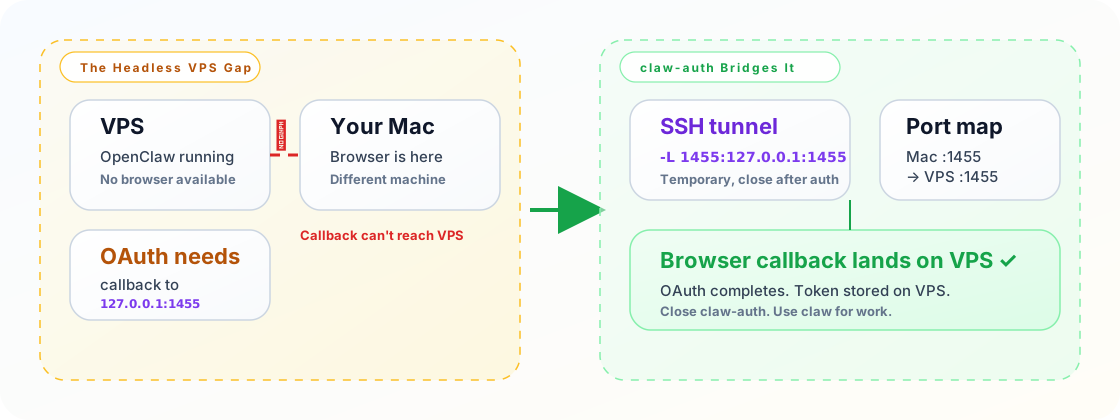
claw-auth bridges the disconnect between your local browser and the remote OpenClaw process by forwarding port 1455 through the SSH connection.
View Mermaid source
flowchart TB
    subgraph gap["The Headless VPS Gap"]
        direction TB
        G1["OpenClaw running on VPS<br>(no browser)"]
        G2["OAuth needs browser callback<br>to 127.0.0.1:1455"]
        G3["Your browser is on your Mac<br>(different machine)"]
        G1 --- G2 --- G3
    end
    subgraph fix["claw-auth Bridges It"]
        direction TB
        F1["SSH -L 1455:127.0.0.1:1455"]
        F2["Mac port 1455 → VPS port 1455"]
        F3["Browser callback lands<br>on the right machine ✓"]
        F1 --- F2 --- F3
    end
    gap --> fix
    style gap fill:#fff3e0,stroke:#ef6c00
    style fix fill:#e8f5e9,stroke:#2e7d32
Seriously, Close That Auth Terminal
I cannot stress this enough. Once OAuth succeeds, close claw-auth immediately.
OpenClaw stores the resulting credentials on the VPS. The tunnel has done its job. But if you leave that session open — and you will, because it looks like any other terminal — here’s what happens three days later:
- you have four terminal tabs open to the same VPS
- one of them is silently forwarding port 1455 and you don’t remember which
- you try to open a new
claw-authsession and getbind: Address already in use - you can’t figure out what’s holding the port
- you start killing SSH sessions at random
- you accidentally kill your working tmux session
Ask me how I know.
The right lifecycle is exactly four steps:
- Start
claw-auth - Complete auth
- Verify auth worked (
openclaw models status) - Close
claw-authright now, not later
The tunnel is dead weight the moment the token is stored. Treat it like scaffolding — take it down as soon as the wall is up.
The Rule of Thumb
- Doing normal work on the box?
claw - Doing a remote OAuth flow that needs your local browser to callback into the VPS?
claw-auth - Auth done? Close
claw-auth. Now. Not in five minutes. Now.
That one separation — and the discipline to actually close the auth session — made the whole setup feel obvious instead of mysterious.
Aloha, Justin
This article is open source. Found an error? Have a different perspective? Open an issue or submit a PR — we welcome contributions from the community.